Linux Fundamentals
Linux Structure
- What is Linux: Linux is an operating system, just like Windows, macOS, iOS, or Android.
- Operating System-> An operating system (OS) is software that manages all the hardware resources of a computer, facilitating communication between software applications and hardware components.
- Linux is available in over 600 distributions, Some of the most popular and well-known being Ubuntu, Debian, Fedora, OpenSUSE, elementary, Manjaro, Gentoo Linux, RedHat, and Linux Mint.
- It is less susceptible to malware than Windows operating systems and is very frequently updated.
- The overall Android operating system that runs on smartphones and tablets is based on the Linux kernel, and because of this, Linux is the most widely installed operating system.
Philosophy
- Linux follows five core principles:
| Principle |
Description |
| Everything is a file |
All configuration files for the various services running on the Linux operating system are stored in one or more text files. |
| Small, single-purpose programs |
Linux offers many different tools that we will work with, which can be combined to work together. |
| Ability to chain programs together to perform complex tasks |
The integration and combination of different tools enable us to carry out many large and complex tasks, such as processing or filtering specific data results. |
| Avoid captive user interfaces |
Linux is designed to work mainly with the shell (or terminal), which gives the user greater control over the operating system. |
| Configuration data stored in a text file |
An example of such a file is the /etc/passwd file, which stores all users registered on the system. |
Components
| Component |
Description |
| Bootloader |
A piece of code that runs to guide the booting process to start the operating system. Parrot Linux uses the GRUB Bootloader. |
| OS Kernel |
The kernel is the main component of an operating system. It manages the resources for system's I/O devices at the hardware level. |
| Daemons |
Background services are called "daemons" in Linux. Their purpose is to ensure that key functions such as scheduling, printing, and multimedia are working correctly. These small programs load after we booted or log into the computer. |
| OS Shell |
The operating system shell or the command language interpreter (also known as the command line) is the interface between the OS and the user. This interface allows the user to tell the OS what to do. The most commonly used shells are Bash, Tcsh/Csh, Ksh, Zsh, and Fish. |
| Graphics server |
This provides a graphical sub-system (server) called "X" or "X-server" that allows graphical programs to run locally or remotely on the X-windowing system. |
| Window Manager |
Also known as a graphical user interface (GUI). There are many options, including GNOME, KDE, MATE, Unity, and Cinnamon. A desktop environment usually has several applications, including file and web browsers. These allow the user to access and manage the essential and frequently accessed features and services of an operating system. |
| Utilities |
Applications or utilities are programs that perform particular functions for the user or another program. |
Linux Architecture
- The Linux operating system can be broken down into layers:
| Layer |
Description |
| Hardware |
Peripheral devices such as the system's RAM, hard drive, CPU, and others |
| Kernel |
The core of the Linux operating system whose function is to virtualize and control common computer hardware resources like CPU, allocated memory, accessed data, and others. The kernel gives each process its own virtual resources and prevents/mitigates conflicts between different processes. |
| Shell |
A command-line interface (CLI), also known as a shell that a user can enter commands into to execute the kernel's functions. |
| System Utility |
Makes available to the user all of the operating system's functionality. |
File System Hierarchy
- The Linux operating system is structured in a tree-like hierarchy and is documented in the Filesystem Hierarchy Standard (FHS). Linux is structured with the following standard top-level directories:
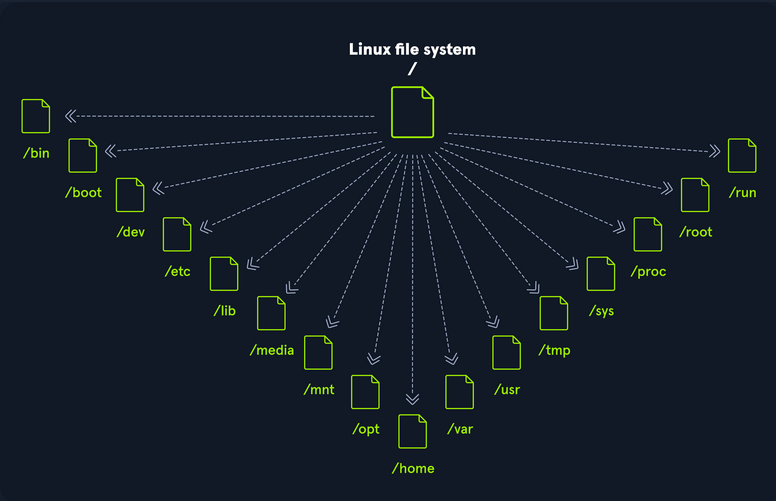
| Path |
Description |
| / |
The top-level directory is the root filesystem and contains all of the files required to boot the operating system before other filesystems are mounted, as well as the files required to boot the other filesystems. After boot, all of the other filesystems are mounted at standard mount points as subdirectories of the root. |
| /bin |
Contains essential command binaries. |
| /boot |
Consists of the static bootloader, kernel executable, and files required to boot the Linux OS. |
| /dev |
Contains device files to facilitate access to every hardware device attached to the system. |
| /etc |
Local system configuration files. Configuration files for installed applications may be saved here as well. |
| /lib |
Shared library files that are required for system boot. |
| /media |
External removable media devices such as USB drives are mounted here. |
| /mnt |
Temporary mount point for regular filesystems. |
| /opt |
Optional files such as third-party tools can be saved here. |
| /home |
Each user on the system has a subdirectory here for storage. |
| /var |
This directory contains variable data files such as log files, email in-boxes, web application related files, cron files, and more. |
| /sbin |
This directory contains executables used for system administration (binary system files). |
| /tmp |
The operating system and many programs use this directory to store temporary files. This directory is generally cleared upon system boot and may be deleted at other times without any warning. |
| /sys |
Applications or utilities are programs that perform particular functions for the user or another program. |
| /proc |
Applications or utilities are programs that perform particular functions for the user or another program. |
| /root |
The home directory for the root user. |
| /usr |
Contains executables, libraries, man files, etc. |
Shell
Prompt Description
- The bash prompt is simple to understand. By default, it shows information like your username (who you are), your computer’s name (hostname), and the folder/directory you’re currently working in.
.PNG)
- The home directory for a user is marked with a tilde <~> and is the default folder when we log in:
.PNG)
- The dollar sign
<$>, in this case, stands for a user. As soon as we log in as root, the character changes to a hash <#> and looks like this:
.PNG)
For example, when we upload and run a shell on the target system, we may not see the username, hostname, and current working directory. This may be due to the PS1 variable in the environment not being set correctly. In this case, we would see the following prompts:
- Unprivileged - User Shell Prompt:
.PNG)
- Privileged - Root Shell Prompt:
.PNG)
The PS1 variable in Linux systems controls how your command prompt looks in the terminal. It’s like a template that defines the text you see each time the system is ready for you to type a command.
By customizing the PS1 variable, you can change the prompt to display information such as your username, your computer’s name, the current folder you’re in, or even add colors and special characters.
In addition to displaying basic information like your username and current folder, you can customize the command prompt to show other useful details such as the IP address, date, time, and the success or failure of the last command.
The prompt can be customized using special characters and variables in the shell’s configuration file (.bashrc for the Bash shell).
| Special Character |
Description |
| /d |
Date (Mon Feb 6) |
| /H |
Full hostname |
| /j |
Number of jobs managed by the shell |
| /n |
Newline |
| /r |
Carriage return |
| /s |
Name of the shell |
| /t |
Current time 24-hour (HH:MM:SS) |
| /T |
Current time 12-hour (HH:MM:SS) |
| /@ |
Current time |
| /u |
Currenr username |
| /w |
Full path of the current working directory |
Getting Help
We will always stumble across tools whose optional parameters we do not know from memory or tools we have never seen before. Therefore it is vital to know how we can help ourselves to get familiar with those tools. The first two ways are the man pages and the help functions.
it’s important to understand the Linux structure, including system details, processes, network configurations, users/user settings, and directories, along with their related parameters. Below is a list of essential tools to help gather this information.
| Command |
Description |
whoami |
Displays current username. |
id |
Returns users identity |
hostname |
Sets or prints the name of current host system. |
uname |
Prints basic information about the operating system name and system hardware. |
pwd |
Returns working directory name. |
ipconfig |
The ifconfig utility is used to assign or to view an address to a network interface and/or configure network interface parameters. |
ip |
Ip is a utility to show or manipulate routing, network devices, interfaces and tunnels. |
netstat |
Shows network status. |
| ss |
Another utility to investigate sockets. |
ps |
Shows process status. |
who |
Displays who is logged in. |
env |
Prints environment or sets and executes command. |
lsblk |
Lists block devices. |
lsusb |
Lists USB devices |
lsof |
Lists opened files. |
lsci |
Lists PCI devices. |
- Hostname:
.PNG)
- The hostname command is pretty self-explanatory and will just print the name of the computer that we are logged into.
- Whoami:
- This quick and easy command can be used on both Windows and Linux systems to get our current username.
- In this case for me, it is going to be “PathogenicKatt”.
- ld:
- The id command expands on the whoami command and prints out our effective group membership and IDs.
- This can be of interest to penetration testers looking to see what access a user may have and sysadmins looking to audit account permissions and group membership.
- uname:
- Starting by checking
man:
.PNG)
- And hence, Running
uname -a will print all information about the machine in a specific order: kernel name, hostname, the kernel release, kernel version, machine hardware name, and operating system.
.PNG)
- Uname to Obtain Kernel Release: Suppose we want to print out the kernel release to search for potential kernel exploits quickly. We can type
uname -r to obtain this information.
Logging In via SSH
- Secure Shell (SSH) refers to a protocol that allows clients to access and execute commands or actions on remote computers.
- On Linux-based hosts and servers, as well as other Unix-like operating systems, SSH is one of the permanently installed standard tools and is the preferred choice for many administrators to configure and maintain a computer through remote access.
.PNG)
.PNG)
.PNG)