CTF Challenge: CipherQR
Challenge Overview
- This was the following description for the challenge:
.PNG)
Approach:
.PNG)
- File Check: This is important to check what type of a file is it.
file Q.rrr.png - Meta-Data: “Data about data”,tells us crucial info about the image. As you can see from the screenshot that there is an error with the file, by using the following command. Now, with that in mind, what came straight to my mind was to check the format of the png.
exiftool Q.rrr.png- By comparing the first 8 bytes(called the Magic number), of the normal png and the one that we have.
- Starting with the normal png(every png must have the correct first 8 bytes), just like so:
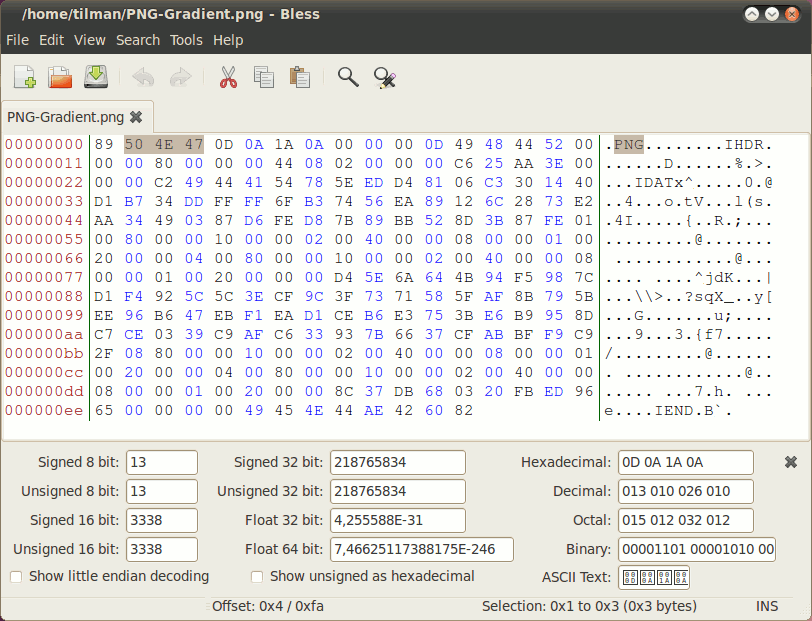
- By comparing the first 8 bytes(called the Magic number), of the normal png and the one that we have.
-
But if we look at our given png(Q.rrr.png):
.PNG)
- That output, is shown using the following command(You should see more than what i have shown):
hexedit Q.rrr.png - After running that comand, you should be able to change the hexadecimal(values), to be the same as the normal png, REMEMBER, only the first 8 bytes, and then save it
Ctrl + x. - From there you should be able to see the image(the QR code). There are many ways that you could do so.
- That is you open the file as normal, you could use the following command:
eog Q.rrr.png - Other way, you can use the
exiftoolagain, like as shown above.
- That is you open the file as normal, you could use the following command:
-
You can scan the QR code, and what you see, is what is called Morse Code(dots and dashes) encryption. Well, i know this through exprience. It is very common to come across a Morse Code encryption whenever you solve CTF Challenges.
.PNG)
- Again there are many tools you could use to decrypt the Morse Code:
- I like to use the following tool dcode, great tool!
- Type in “morse code”, in the search bar, and paste the morse code.
- You should see the flag(the first string).
.PNG)
- That output, is shown using the following command(You should see more than what i have shown):